Databricks
This guide outlines the steps to create a Databricks connection within Syntropic.
Required Permissions
The connection to Databricks is established at the schema level. Syntropic supports two authentication methods to connect to Databricks:
- Personal Access Token (PAT) - linked to a user account
- Service Principal - linked to a service principal for enhanced security
For Personal Access Token Authentication
You can grant the necessary permissions to the user account you plan to use with Syntropic using a SQL query like the following:
GRANT USE SCHEMA, SELECT, CREATE TABLE, CREATE VOLUME, MODIFY ON SCHEMA [your_catalog].[your_schema] TO `[email protected]`;
For Service Principal Authentication
You can grant the necessary permissions to the service principal you plan to use with Syntropic using a SQL query like the following:
GRANT USE CATALOG ON CATALOG [your_catalog] TO `your_service_principal_client_id`;
GRANT USE SCHEMA, SELECT, CREATE TABLE, CREATE VOLUME, MODIFY ON SCHEMA [your_catalog].[your_schema] TO `your_service_principal_client_id`;
The CREATE VOLUME permission is used to create a staging volume (syntropic_staging) for efficiently writing data via Parquet files. The volume is created automatically when you first connect — your data never leaves your Databricks environment.
If you also want to delete tables in this schema from Syntropic that are not created using this user account or service principal, you will need to grant the MANAGE permission as well.
For enhanced security, you can create a dedicated service principal or user account specific for Syntropic scoped only to the required catalog and schema.
Creating a New Databricks Connection
-
Navigate to the Connections page from the main sidebar.
-
Click the New Connection button located in the top right corner.
-
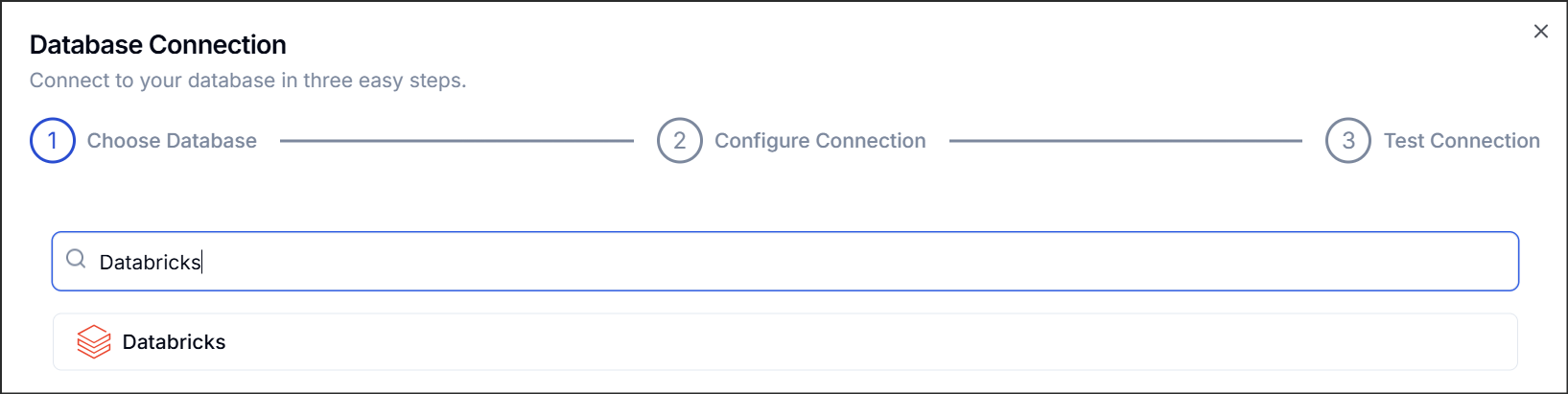
Find and select Databricks from the list of available connection types.
Configuring the Connection
You will need to provide the following details for your Databricks workspace:
-
Name: Provide a descriptive name for this connection for easy identification within Syntropic.
-
Connection Details (found in the "Connection details" tab of your SQL Warehouse or the "JDBC/ODBC" tab for a Cluster):
- Server Hostname: Enter the Server Hostname of your Databricks SQL Warehouse or Cluster.
- Port: This is typically
443. Confirm this value in your Databricks workspace. - HTTP Path: Enter the HTTP Path associated with your SQL Warehouse or Cluster.
Authentication Method
Choose between two authentication methods:
Personal Access Token (PAT)
- Access Token: Provide a Databricks Personal Access Token (PAT).
- Generating a Token:
- In your Databricks workspace, click on your profile icon in the top right corner and select Settings.
- In the left-hand menu, under the Developer section, click Manage next to Access tokens. Your account should have CAN USE access to create a PAT.
- Click Generate new token:
- Name: Syntropic (or any other name you prefer).
- Lifetime: leave blank for maximum lifetime, or set a specific lifetime as per your security policies.
- Generating a Token:
Service Principal
For enhanced security, you can use a service principal:
-
Client ID: The client ID of your Databricks service principal.
-
Client Secret: The client secret associated with your service principal.
-
Setting up a Service Principal:
- In your Databricks workspace, go to Settings > Identity and access > Service principals.
- Click Add service principal and provide a name (e.g., "Syntropic").
- After creating the service principal, generate a client ID and secret pair by clicking Generate secret in the service principal details.
- Add the service principal as a user on the specific Workspace you want to connect to. In the Databricks Account Console, go to your workspace and click on the Permissions tab. Click Add Permissions and select the service principal you created, and assign it the "User" role.
- Ensure the service principal has the necessary permissions as described in the Required Permissions section.
Database Configuration
-
Catalog: Specify the Catalog you want to connect to.
-
Schema: Specify the schema within the selected catalog that you want to access.
Finalizing
- Once all details are entered, click Connect and Syntropic will verify the connection to your Databricks workspace using the provided credentials.