Amazon S3
This guide outlines the steps to create an S3 connection within Syntropic.
Syntropic manages tables in S3 using the Delta Lake format. When you create or import tables through Syntropic, they will be stored as Delta tables.
Required Permissions
To connect to S3, Syntropic requires an AWS IAM User with policies that grant necessary permissions to access your S3 resources. At a minimum, the IAM User should have s3:ListBucket and s3:GetBucketLocation permissions on the bucket, and s3:GetObject, s3:PutObject, and s3:DeleteObject permissions for the target path.
Here is an example IAM policy granting the necessary permissions. Replace [your-bucket-name] and [your-path-prefix] with your specific S3 bucket name and path prefix (if any).
{
    "Version": "2012-10-17",
    "Statement": [
        {
            "Effect": "Allow",
            "Action": [
                "s3:ListBucket",
                "s3:GetBucketLocation",
            ],
            "Resource": [
                "arn:aws:s3:::[your-bucket-name]"
            ]
        },
        {
            "Effect": "Allow",
            "Action": [
                "s3:GetObject",
                "s3:PutObject",
                "s3:DeleteObject"
            ],
            "Resource": [
                "arn:aws:s3:::[your-bucket-name]/[your-path-prefix]/*",
                "arn:aws:s3:::[your-bucket-name]/[your-path-prefix]"
            ]
        }
    ]
}
If you do not use a path prefix, you can simplify the second resource to "arn:aws:s3:::[your-bucket-name]/*".
For enhanced security, it is recommended to create a dedicated IAM user or role for Syntropic with policies scoped only to the required S3 buckets and prefixes.
Creating a New S3 Connection
-
Navigate to the Connections page from the main sidebar.
-
Click the New Connection button located in the top right corner.
-
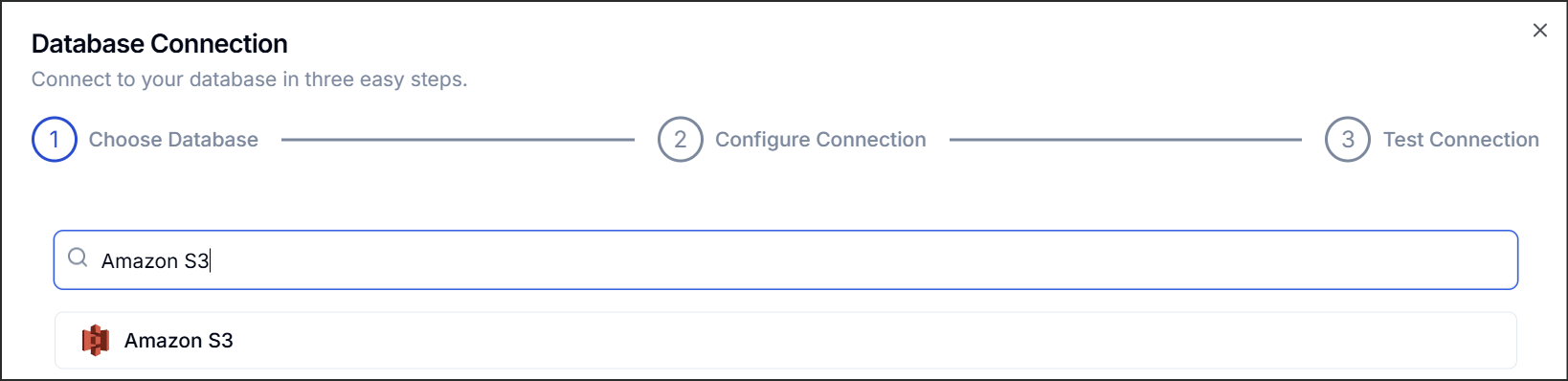
Find and select S3 from the list of available connection types.
Configuring the Connection
You will need to provide the following details for your S3 connection:
-
Name: Provide a descriptive name for this connection for easy identification within Syntropic. (e.g., "S3 Marketing Data Lake")
-
Connection Details:
- Access Key ID: Enter your AWS Access Key ID associated with an IAM user that has the required permissions.
- Secret Access Key: Enter your AWS Secret Access Key associated with the Access Key ID.
- Region: Select the AWS region where your S3 bucket is located.
- Bucket Name: Specify the name of the S3 bucket you want to connect to.
- Path (Optional): Specify a path prefix within the bucket if you want to scope the connection to a specific folder. For example,
data/raw/oruploads/.
Finalizing
- Once all details are entered, click Connect and Syntropic will verify the connection to your S3 bucket using the provided credentials.